
Introduction
Most of the formatting work in a presentation is repetitive: placing the logo, aligning titles, adding footers and slide numbers, picking the same colors again and again. Done slide by slide instead of once in the Slide Master, it eats hours, and small inconsistencies inevitably creep in.
Consultants avoid this by setting things up once. A well-configured Slide Master handles the elements that appear on every slide, and a personal slide library gives you proven designs to reuse. Together, they make your decks faster to build and consistent by default: by the time you review your presentation for consistency, most of the work is already done.
Set up the Slide Master
The Slide Master (called Theme builder in Google Slides) is the foundation layer of your slides. Whatever you define there applies automatically to every slide in the presentation.
Start with the elements that should remain identical on every slide:
- Theme colors and fonts. Define your brand colors and fonts once. Charts, shapes and text will pick them up automatically, which keeps your whole deck consistent without manual formatting.
- Logo, headers and footers. Place them once, in the same spot on every slide.
- Slide number, presentation name and date. Standard in consulting decks, they make any slide identifiable, even when shared on its own.
While this requires a small initial investment, it pays off quickly: you will never have to add a logo or realign a footer by hand again.
Build a few slide layouts in the Slide Master
Beyond the elements shared by every slide, the Slide Master lets you create individual layouts: elements that appear only on slides using that layout. You can, for example, design layouts for executive summary slides, divider slides, closing slides, two- or three-column slides, slides split in half, and more.
Create at least a “Title only” and a “Title and Content” layout
In Google Slides, the second one is called “Title and body”. With these two, you can handle almost any slide, and switch any slide back to a clean, branded base.
When you add text in the body, use the text placeholder of the “Title and body” layout rather than inserting a new text box. It’s the only way to make sure your text follows the formatting defined in the Slide Master.
Keep your layouts simple
I personally keep a few layouts in my Slide Master. I typically add a title placeholder, as well as placeholders for footnotes, sources, presentation name, date and slide number. However, I almost never add column, row or image placeholders. Instead, I focus on layouts that divide the slide into two main blocks (split in thirds, in half, etc., with color distinctions between the parts). That way, I can easily:
- Break monotony and add some variation in the slide designs;
- Change how the slide is divided depending on the content: some information fits a square format better, while other content suits a wide one.
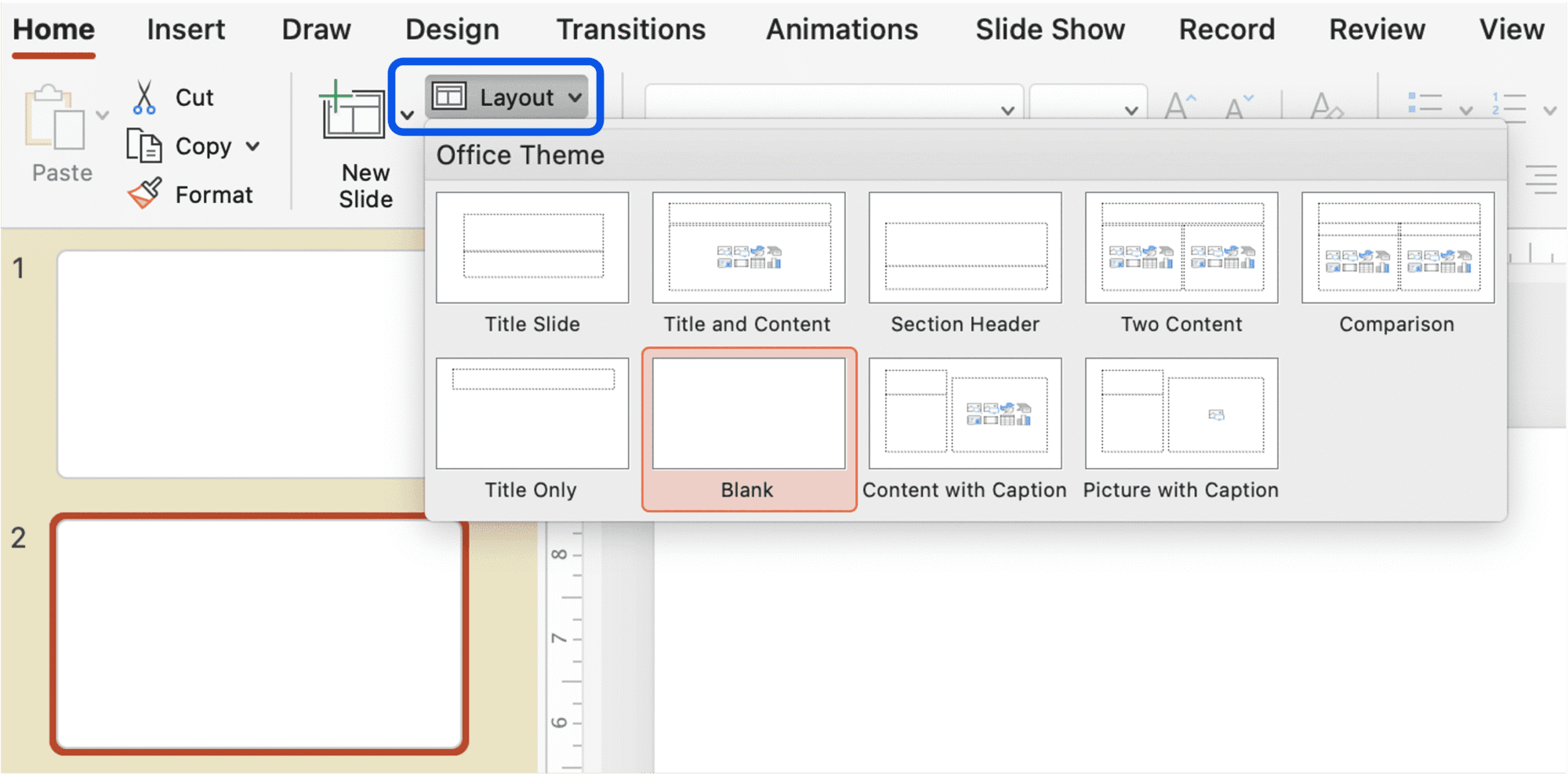
To apply a layout, right-click a slide thumbnail and choose Layout in PowerPoint, or Apply layout in Google Slides. In PowerPoint, you can also use the Layout button in the Home tab.
Build your slide library
Whether your Slide Master is elaborate or very simple, take the habit of saving your best slides in a separate deck: frameworks, diagrams, chart layouts and page designs that worked well. Ideally, they share the same theme and Slide Master as your usual presentations, so you can copy and paste them straight into a new deck.
Over time, this library becomes one of your biggest time savers. When you need to illustrate a type of information you’ve already handled, you adapt an existing design instead of starting from scratch.
When you paste slides from your slide library or from other presentations, choose Use Destination Theme in PowerPoint, or Match formatting in Google Slides, so that they adopt your template.
inslidr tip – invest in a pre-made slide library
If you want to save time but don’t yet have impactful slides to reuse, consider a professionally designed, pre-made slide library. It’s an excellent option if you’re unsure where to start or want a polished look quickly. High-quality templates aren’t free, but they can save you hours of design work. They typically contain overall slide layouts, as well as visual elements for the slide bodies: charts, frameworks, diagrams.
The toolkit, our own slide library offers 100+ slide layouts built on proven consulting best practices, ready to drop into your decks.
Conclusion
A few minutes spent on your Slide Master and a growing slide library save hours on every presentation. Your decks become consistent by default, and you can focus on what actually makes them convincing: the storyline and the content of each slide.
To see where this fits in the full process, read our complete guide to building a consulting-style presentation. For what goes inside each slide, read the anatomy of a consulting slide.
If you found this guide useful, share it with friends and colleagues who might benefit.

Leave a Reply